Aviom A16CS Remote Control Surface for A16R
No longer available at zZounds
zZounds Gear Experts Say...
Control of all mix functions in the A16R.
Overview
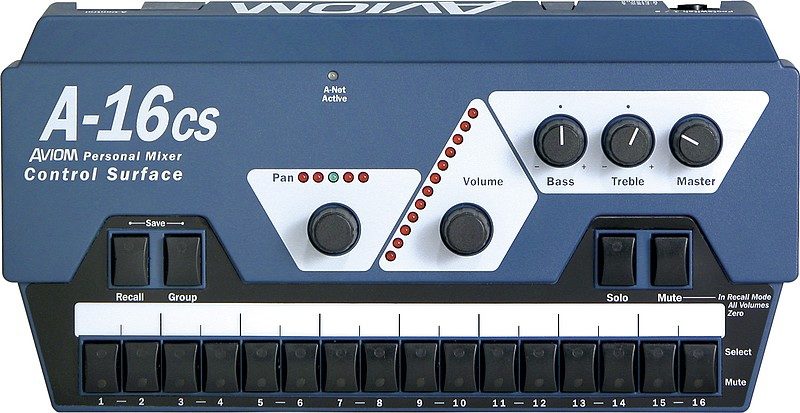
The A16CS Control Surface allows the A16R Personal Mixer to be mounted in a rack with power amps, wireless transmitters, effects, etc., while still allowing a performer to have complete control over mix functions and presets. In addition, the A16CS provides intuitive control over basic mix functions for systems in non-performance settings.
The user interface is similar to that of the A16II.
Features
Control of all mix functions in the A16R
Sixteen channel-select buttons with dual LEDs
Dedicated Recall, Group, Solo, and Mute buttons
Save and Recall of the 16 Presets in the A16R
Pan/Spread control with LED readout
Channel volume control with LED readout
Master Volume, Treble, and Bass controls
Mounts easily on a mic stand with the optional MT1 mic stand mount
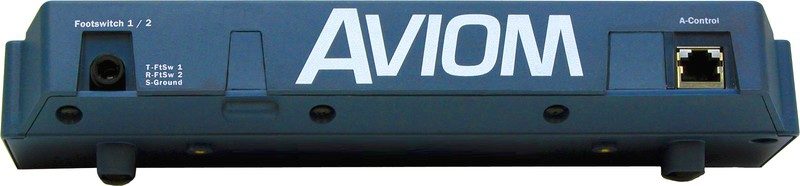
Dual footswitch jack for selecting Presets (up/down)
A-Control jack to connect the A16CS to the A16R via Cat-5
The user interface is similar to that of the A16II.
Features
Control of all mix functions in the A16R
Sixteen channel-select buttons with dual LEDs
Dedicated Recall, Group, Solo, and Mute buttons
Save and Recall of the 16 Presets in the A16R
Pan/Spread control with LED readout
Channel volume control with LED readout
Master Volume, Treble, and Bass controls
Mounts easily on a mic stand with the optional MT1 mic stand mount
Dual footswitch jack for selecting Presets (up/down)
A-Control jack to connect the A16CS to the A16R via Cat-5
Specs
A-Control Inputs: One Category 5 (RJ45 connector)
Footswitch Input: One TRS
Size (WxDxH): 10.75 x 5.6 x 2.22 in.
Weight: 3.4 lbs
Options:
- MT1 Mic Stand Mount
- EB1 Extension Bracket
Footswitch Input: One TRS
Size (WxDxH): 10.75 x 5.6 x 2.22 in.
Weight: 3.4 lbs
Options:
- MT1 Mic Stand Mount
- EB1 Extension Bracket
No longer available at zZounds
In most cases, a product is unavailable because it has been discontinued by the manufacturer

This is a carousel with product cards. Use the previous and next buttons to navigate.
People who bought this item also bought
Shure PGADRUMKIT7 7-Piece Drum Microphone Kit (with Case)
$659.00
- 12 payments of$54.92/mo
- No Credit Check6 payments of$109.83/mo
-
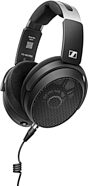
Sennheiser HD 490 PRO Plus Open-Back Studio Headphones
$499.00
- 8 payments of$62.38/mo
- No Credit Check6 payments of$83.17/mo
-
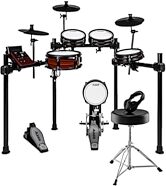
Alesis Nitro Pro Electronic Drum Set
$798.00
- 12 payments of$58.25/mo
- No Credit Check6 payments of$116.50/mo
-
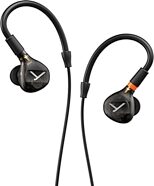
Beyerdynamic DT 72 iE Professional In Ear Monitors
$579.99
- 8 payments of$72.50/mo
- No Credit Check6 payments of$96.66/mo
-
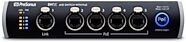
PreSonus SW5E 5-Port AVB Ethernet Switch with PoE
$524.99
- 8 payments of$65.62/mo
- No Credit Check6 payments of$87.50/mo
-